Putting the Power Back in PowerBook

December 20, 2009

My PowerBook G4 (17″, 1GHz) was having more and more problems charging its battery. More often than not, when I plugged it into AC while turned on, it would flip back and forth every couple of seconds between showing it was plugged in and showing it was running off battery, with the screen brightening and dimming each time, and making a loud whining noise. It got to where I usually had to put it in sleep mode or turned off in order to charge the battery. The battery wasn’t the problem; it was a new replacement battery that worked fine in an identical PowerBook.

Some searching turned up a web page claiming to describe a fix for this problem.

The author of the article describes symptoms like I was seeing and attributes the problem to Apple’s power connector design, which gradually wears out. He describes how to replace the PowerBook’s power jack and the power supply’s plug with generic power connectors from Radio Shack. I decided it was my only option for trying to get my laptop working reliably again, so I tried it.

The article’s author has a 15″ model, which is disassembled differently than my 17″, so I had to adapt the instructions. I used the following guide from iFixit.com: Installing PowerBook G4 Aluminum 17″ 1-1.67 GHz RJ-11 Board. I used a size N DC power plug and jack, Radio Shack part numbers 274-1583 and 274-1573, and they fit well, with no extra washers needed.

It works! My PowerBook now charges while turned on and doesn’t emit a loud whine when plugged in.

I never thought I’d be hacking laptop hardware, but having someone blaze the trail gave me the courage.

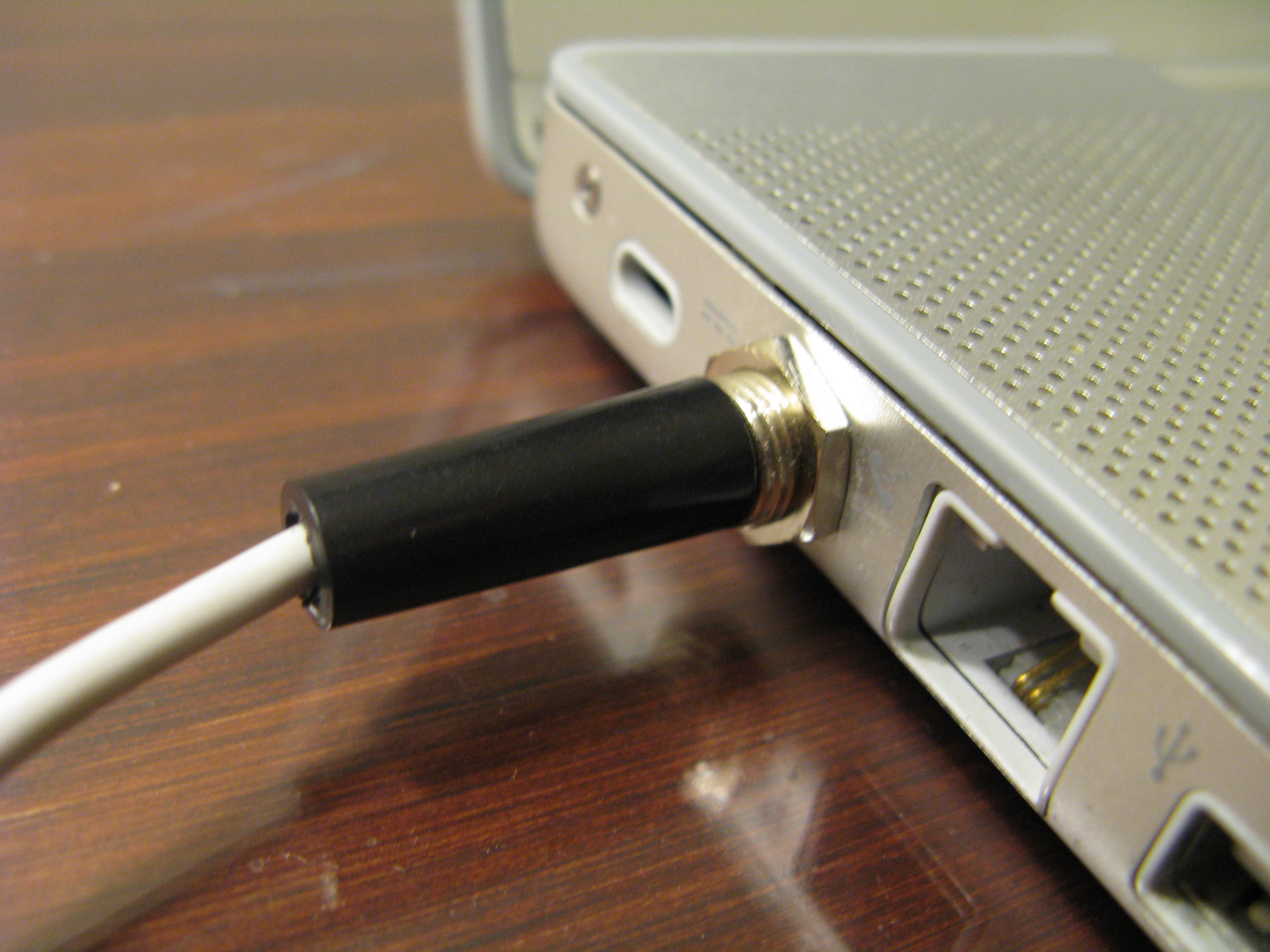
PowerBook G4 replacement power jack, inside view

PowerBook G4 with replacement power jack

Math Cartoons

November 30, 2009

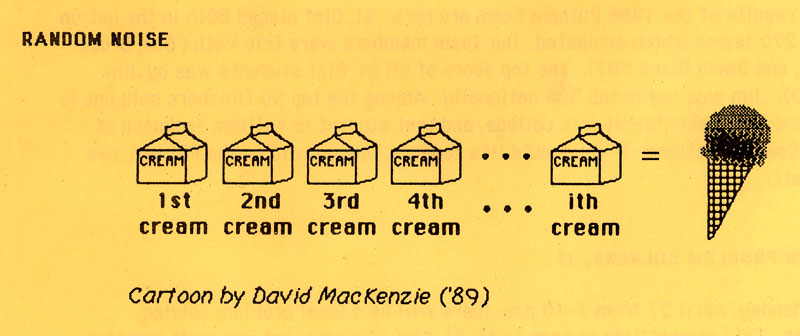
Here are a couple of cartoons I drew in April, 1987 for the St. Olaf College Math Department newsletter, the Math Mess. I have no idea what software I drew them with.

Pasting Plain Text

September 18, 2009

When I copy text on a computer, most often I want to paste it without the accompanying formatting. On both MacOS X and Windows, there is no built-in way to do this that works in all applications. After trying several approaches, I found freeware solutions that provide a hotkey for that missing function.

Mac (tested on 10.6 Snow Leopard):

  1. Download Spark and the Plain Clip Plug for Spark (I couldn’t get the regular Plain Clip application to do the paste part, so I had to use the special Spark plugin version).
  2. Open the Spark disk image and drag Spark to your Applications folder.
  3. Create the folder ~/Library/Application Support/Spark/PlugIns
  4. Open the Plain Clip Plug disk image and drag Plain Clip Plug.spact to the ~/Library/Application Support/Spark/PlugIns folder.
  5. Double-click Applications/Spark to run it.
  6. The first time Spark runs, it shows a screen including two checkboxes, to activate Spark at login and immediately. Leave them checked.
  7. File>New HotKey>Plain Clip
  8. Type a name for the hotkey (such as “Paste Plain Text”), check the Send Command-V keystroke box, and click on the Shortcut box and press Command-Option-v (or whatever key you want to be the shortcut).
  9. Click Create
  10. Now Command-Option-v pastes the clipboard as plain text.

Mac (tested on 10.13 High Sierra):

  1. Plain Clip doesn’t work on High Sierra.
  2. Use the free “Get Plain Text” app from the App Store.

Windows (tested on Windows XP and 7 RC):

  1. Download PureText
  2. Unzip PureText by right-clicking on the Zip file and selecting Extract All
  3. Create the folder C:\Program Files\PureText
  4. Copy PureText.exe to C:\Program Files\PureText
  5. Double-click C:\Program Files\PureText\PureText.exe to run it. It opens as an icon in the system tray.
  6. Right-click the PT icon in the system tray and select Options.
  7. Check the box Automatically run PureText each time I log on to Windows, uncheck Play a sound, and click OK.
  8. Now Windows-v pastes the clipboard as plain text.

Design a site like this with WordPress.com
Get started